

Tableau Integration
Version 8.0.0.490
SmartData Fabric® Integration with Tableau Preparing
EIQ Adapters™ and EIQ Federation Servers™ Configuring
Tableau for Connections Connecting
Using Single Sign On (Postgres Enumerated Driver) The SmartData Fabric® can seamlessly
integrate with Tableau to enable the multitude of benefits of the EIQ Product
Suite™ for Tableau’s advanced BI and analytic capabilities. The following
document will detail how to configure the EIQ Adapters and Federation Server so
that they are ready for a Tableau connection and the various ways that
connection can be made. WhamTech uses an in-house ODBC driver (WhamODBC)
to configure EIQ Adapters and EIQ Federation Servers as data sources. When the
adapters and federation servers have been configured: ·
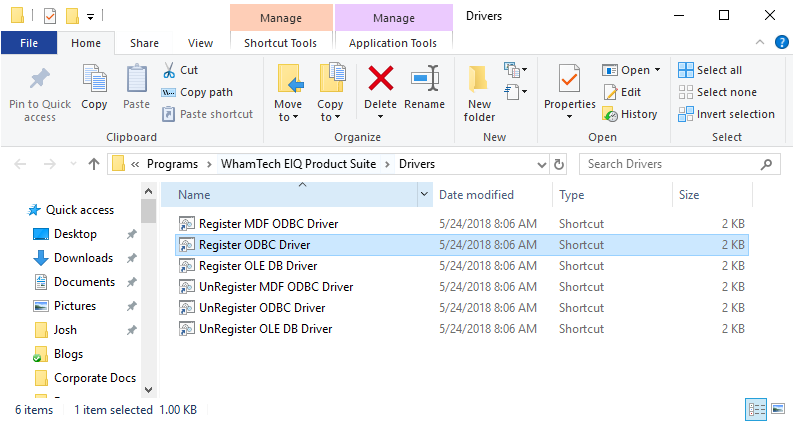
Register the WhamTech ODBC driver. Right-click
and run as an administrator. ·
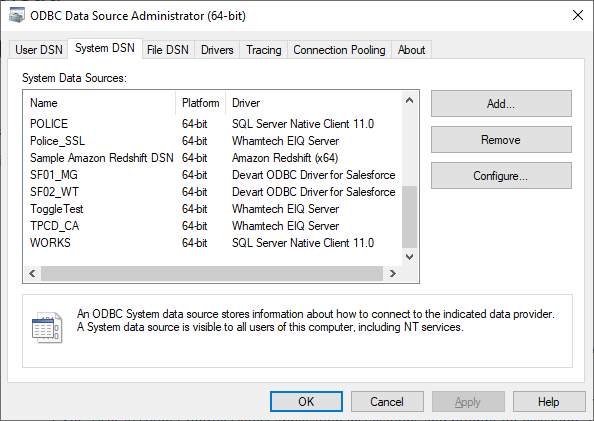
Open the ODBC Data Source Administrator and
create the DSN under the System DSN tab. ·
Click ‘Add’ to create a new DSN. ·
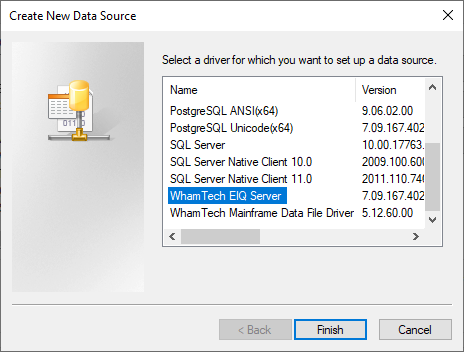
Select the ‘WhamTech EIQ Server’ option. ·
Click ‘Finish’. ·
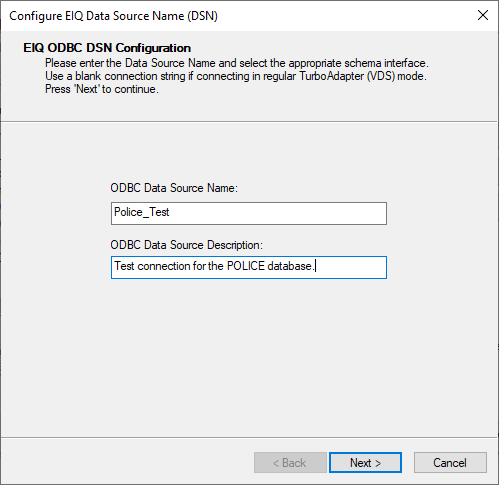
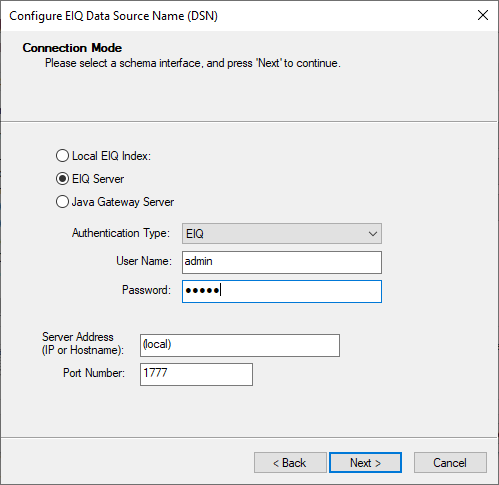
Enter a name for the data source connection and
provide a description if necessary. ·
Specify the connection type. Most configurations
will use the ‘EIQ Server’ connection option. ·
Select an authentication type and enter the
credentials if necessary o
Authentication types are: §
EIQ – User name and password must be provided §
System Logged on – uses identity of the current
user to connect §
Application Provided System Logged on user –
same as System Logged On but supports Prompting user for credentials on the UI
– for tools that does not support system logged on but wants to user windows
identity for connection §
EIQ with SSL – same as EIQ with communication
over SSL (additional configuration required on EIQ setup) ·
Specify the server address and the port number
for the server where the data source is located. For ‘EIQ Server’ this will be
the EIQ Server address for your adapter or federation. ·
Click ‘Next’. ·
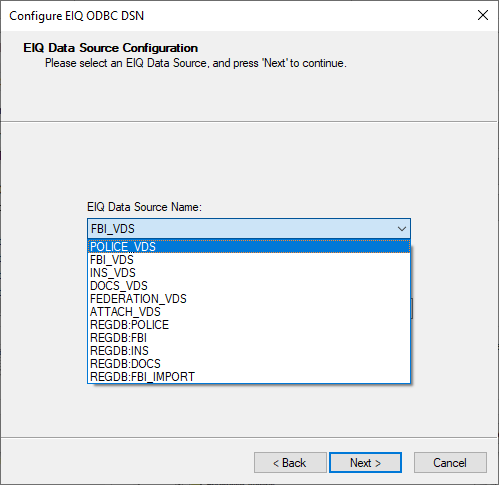
Select the appropriate Virtual Data Source from
the dropdown menu. ·
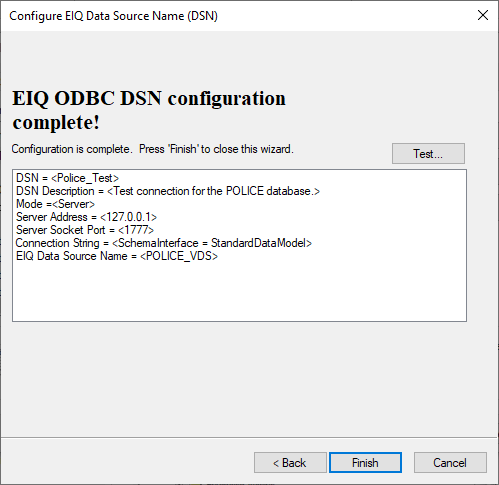
Specify the correct connection string: o
For adapters with a Standard Data View mapping
use SchemaInterface = StandardDataModel o
For adapters without a mapping, use SchemaInterface = Native ·
Click ‘Next’. ·
Test the connection. ·
After a successful connection, click ‘Finish’. There are a few more configuration tasks that must be
preformed to make sure that connections to Tableau run smoothly. ·
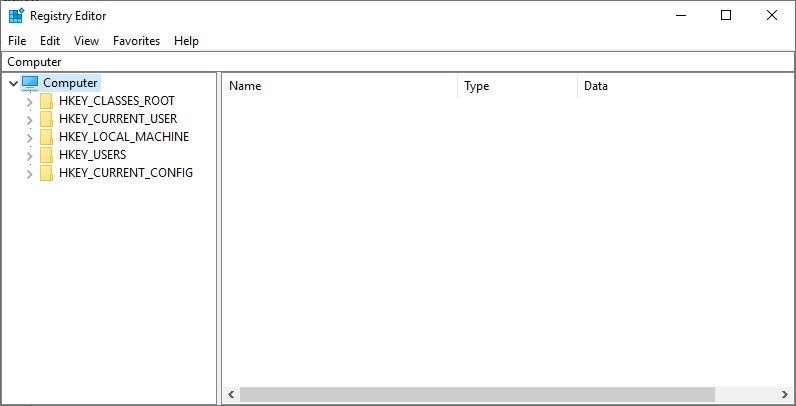
Enter ‘Regedit’ in the Windows Search bar. ·
Run the registry command as an administrator. ·
Follow the path HKEY_LOCAL_MACHINE \ SOFTWARE ·
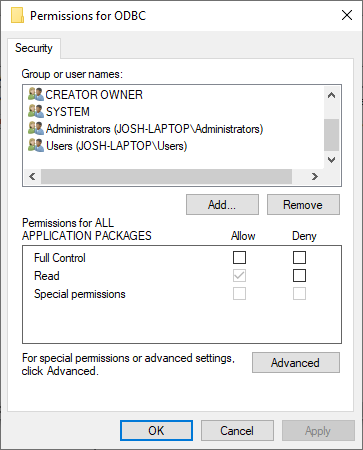
Right-click on the ODBC folder and select
‘Permissions’ from the context menu. ·
Grant ‘Full Control’ to the user running the
Tableau service. ·
Continue down the Registry to the ‘WhamTech’
folder. ·
Grant the same user ‘Full Control’ to the
‘WhamTech’ folder as well. ·
Close the Registry. ·
Starting
with EIQ 7.10.31 – Registry privileges are no longer required. The user running the Tableau service will need access to
those folders to avoid permissions errors. Required for Application Provided System Logged On Only ·
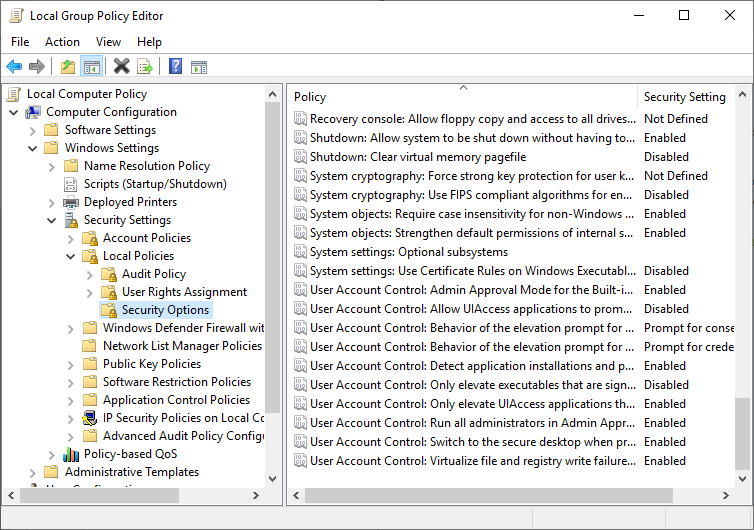
Run gpedit.msc to open
the Local Group Policy Editor. ·
Go to Computer Configuration \ Windows Settings
\ Security Settings \ Local Policies \ Security Options The following policies need to be changed. ·
Set “User Account Control: Only elevate UIAccess applications that are installed in secure
locations” to Disabled. ·
Optional
configuration o
Set “User Account Control: Behavior of the elevation
prompt for administrators in Admin Approval Mode” to Elevate without prompting. o
Set “User Account Control: Detect application
installations and prompt for elevation” to
Disabled. o
Set “User Account Control: Run all
administrators in Admin Approval Mode” to
Disabled ·
Restart the machine to apply the changes. The SmartData Fabric® connects to
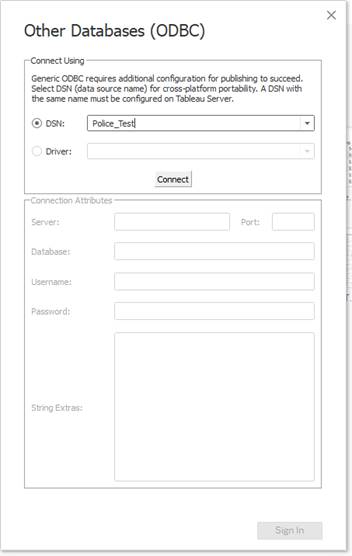
Tableau using an ODBC connection. To setup an ODBC connection: ·
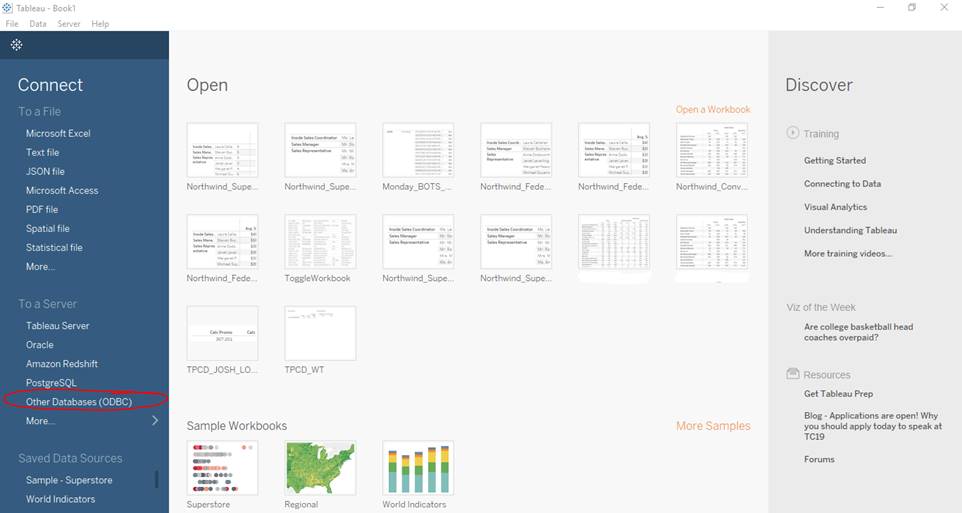
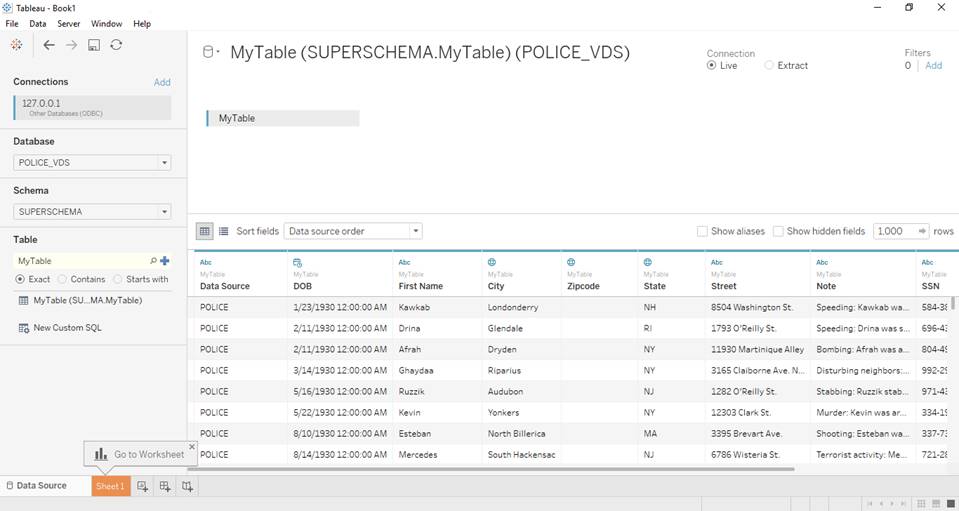
Select ‘Other Databases (ODBC)’ under the ‘To a
Server’ section. ·
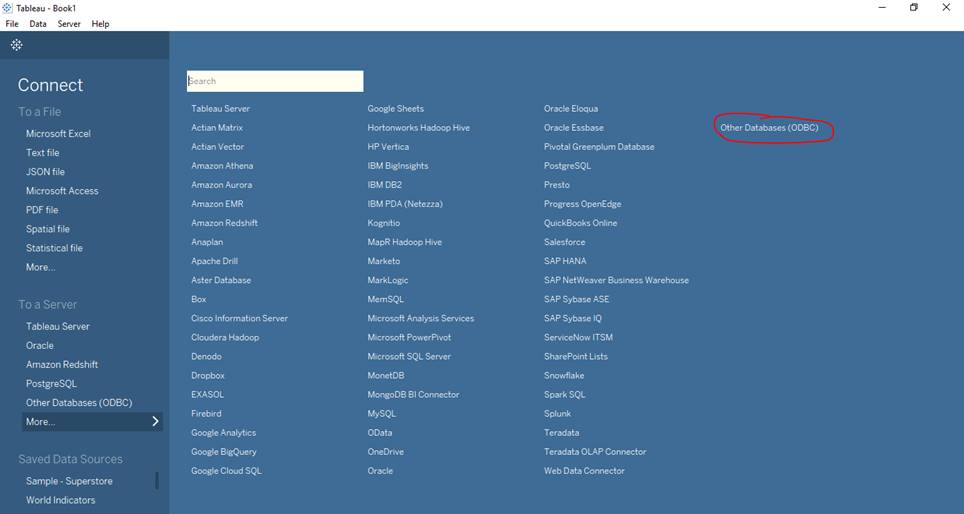
If the selection does not appear under that
section, click ‘More…’. ·
Once selected, chose the DSN of the desired data
source. ·
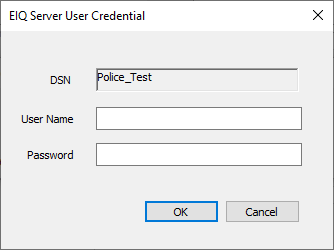
Click ‘Connect’. ·
Enter the EIQ Server credentials. ·
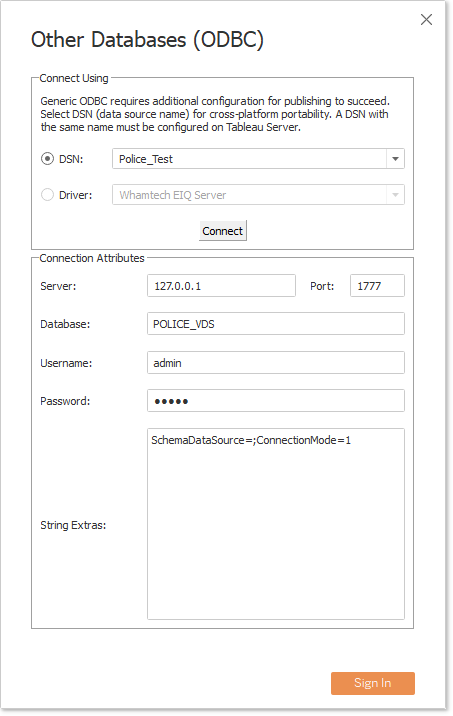
Validate the connection attributes. ·
Click ‘Sign In’. ·
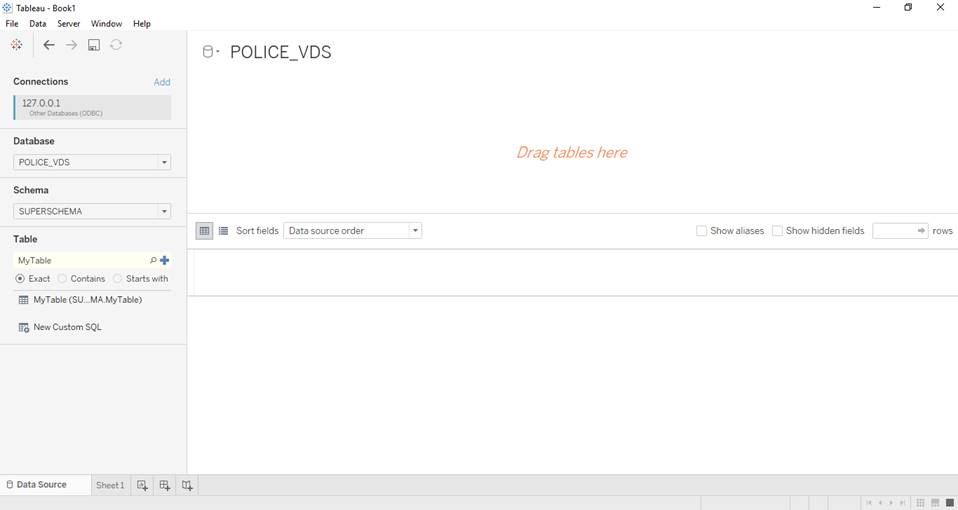
Make sure the database is the appropriate VDS. ·
For schema, search for SUPERSCHEMA. ·
Enter ‘MyTable’ as the
Table name. ·
Drag MyTable to the
top of the window the right pane. ·
Select ‘Update Now’ to preview the data in the
source. ·
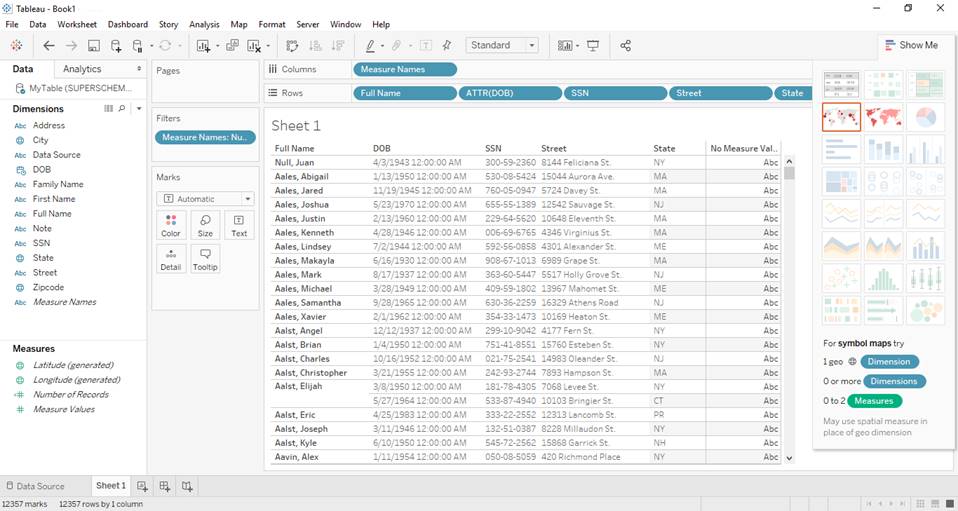
Click ‘Sheet 1’. ·
Begin creating a dashboard. If the permissions or connections aren’t set-up correctly, Tableau
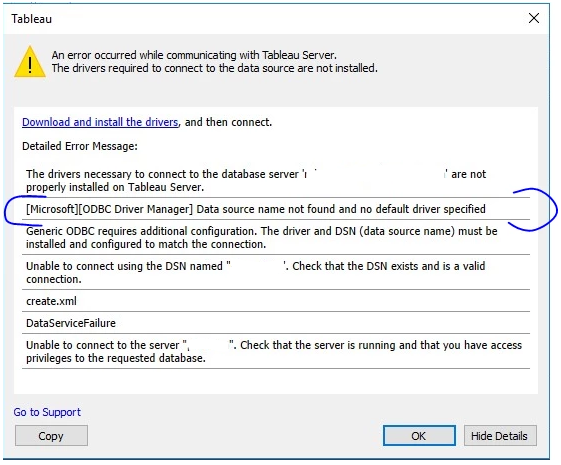
Desktop will fail to connect to the Tableau Server. The most common error is
“[Microsoft][ODBC Driver Manager] Data source name not found and no default
driver specified.” This error is cause by one of two reasons: ·
The WhamTech ODBC Driver is either not installed
or registered. It must reference the [Microsoft][ODBC Driver Manager]. o
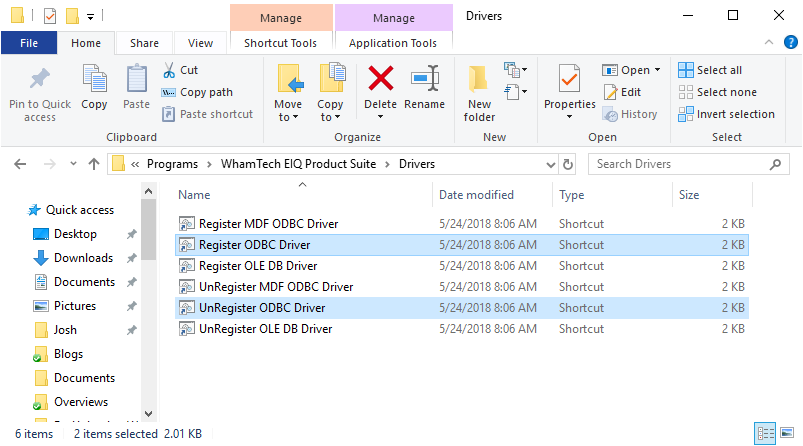
Fix this by unregistering and registering the
WhamTech ODBC Driver. o
The .bat files are located in the “C:\ProgramData\Microsoft\Windows\Start Menu\Programs\WhamTech EIQ Product Suite\Drivers” file path. ·
The error appears without the “[Microsoft][ODBC
Driver Manager]” reference; meaning the driver is registered but the DSN does
not exist. o
Fix this by using the ODBC Data Source
Administrator to verify that the Data Source names and configuration settings
are correct. WhamTech is also capable of connecting to Tableau using SSO
for enhanced security. Perform the following steps to enable SSO: ·
Install Whamtech Client Components. ·
Unregister the default Postgres driver. o
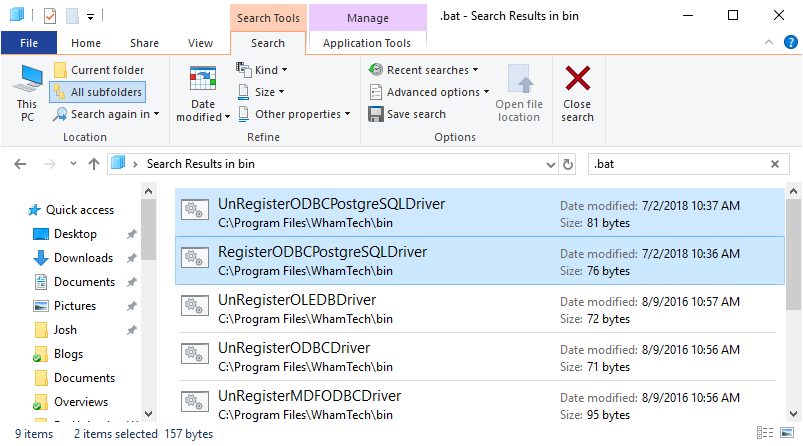
Use the “Unregister ODBCPostgresSQL
Driver” .bat file in the WhamTech bin folder. (Figure 1) o
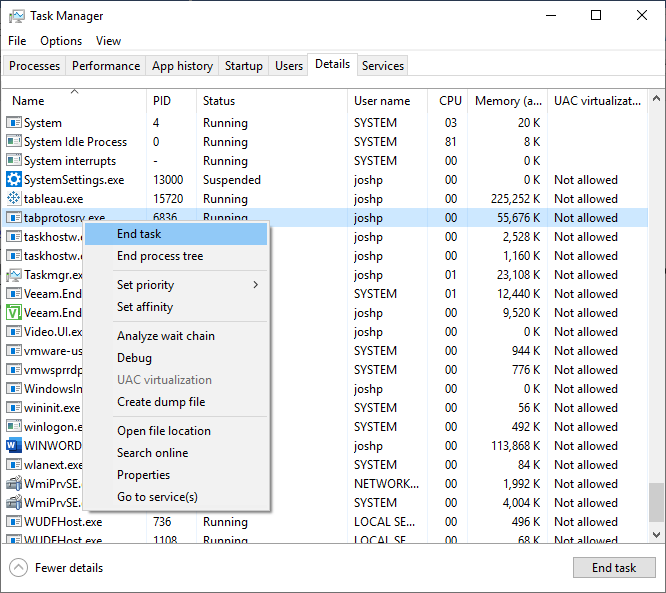
TABLEAU
SERVER RESTART NOT REQUIRED. MAKE SURE the tabprotosrv.exe process for the database connection is killed
before retrying. (Figure 2) ·
Register the Whamtech Postgres Driver o
Use the “Register ODBCPostgreSQL
Driver” .bat file in the WhamTech bin folder. (Figure 1) o
TABLEAU
SERVER RESTART NOT REQUIRED. MAKE SURE the tabprotosrv.exe process for the database connection is killed
before retrying. (Figure 2) (Figure 1) (Figure 2) ·
On Tableau Server, enable single sign on using
Tableau’s instructions (check your specific version). TABLEAU SERVER RESTART IS REQUIRED. ·
https://onlinehelp.tableau.com/current/server/en-us/config_kerberos.htm ·
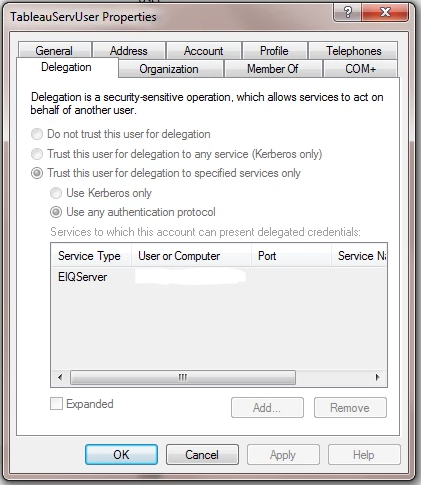
Verify Delegation to EIQ Server is done for
Tableau Server Run as User. TABLEAU
SERVER RESTART IS REQUIRED. o
After enabling Kerberos for Tableau Server,
verify that the Delegation Tab appears for Tableau Server Run as User. Under
delegation check Any Authentication Protocol and Add EIQServer
Service name for which the Tableau Server will delegate to. o
Go to “Active Directory Users and Computers → [Your Domain] → Users → [Specific User
Properties]” o
https://community.tableau.com/docs/DOC-10247 ·
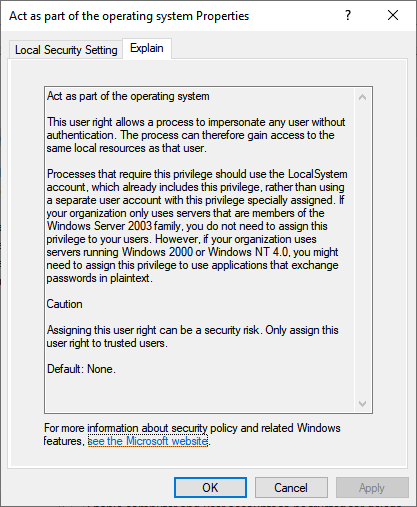
Verify
that the User running Tableau Server is allowed to Act as part of Operating
System. TABLEAU SERVER RESTART IS REQUIRED. o
Navigate Local Security Groups → User
Rights Assignment → Act as part of the operating system o
Add User or Group: Add the User running Tableau
Server → Apply o
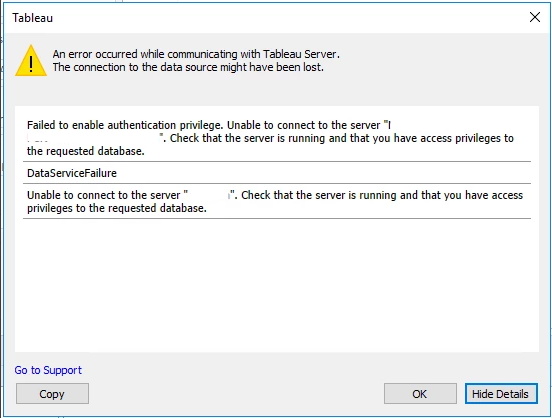
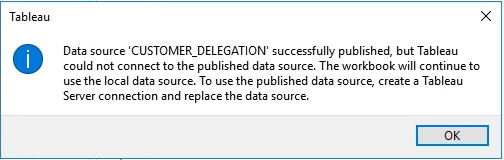
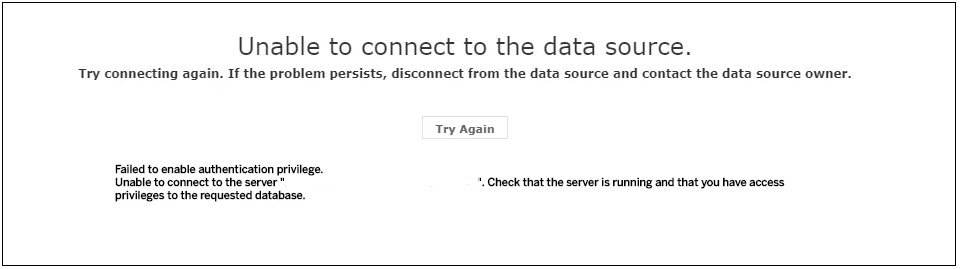
The errors shown below will occur if this
property is not set: Tableau Desktop Tableau Server o
https://onlinehelp.tableau.com/current/server/en-us/runas_os.htm (Optional) The following steps are no longer required in the most
recent patches. Older patches may still need to perform this step. ·
Setup
Permissions for all the users trying to access WhamTech resources. TABLEAU
SERVER RESTART NOT REQUIRED. MAKE SURE the tabprotosrv.exe process for the database connection is killed
before retrying. o
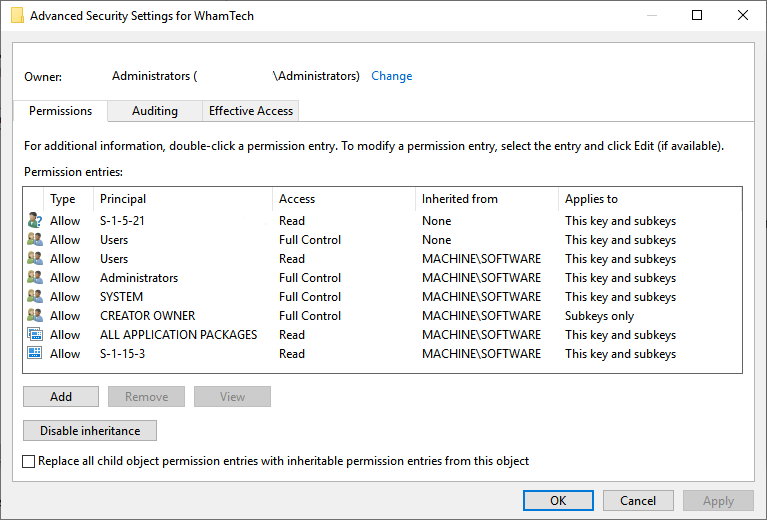
Follow
the Registry path “HKEY_LOCAL_MACHINE\SOFTWARE\WhamTech”. o
Right-click the WhamTech folder and select
“Permissions” from the context menu. o
Click “Advanced”. o
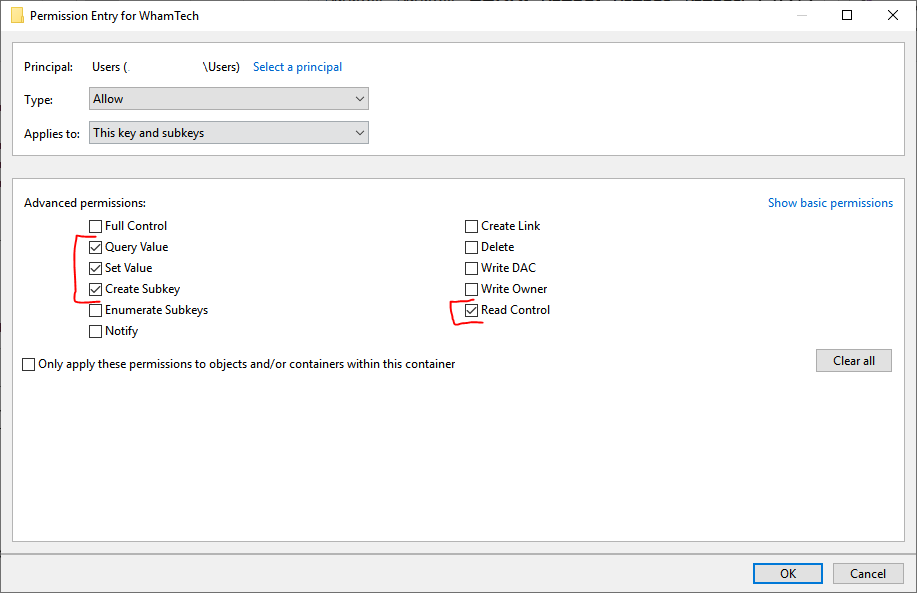
Double-click the users that need permissions to
open up the permission entry window, then click “Show Advanced Permissions”. o
Grant the following permissions to the desired
users. §
Read Control §
Create Subkey §
Set Value §
Query Value Once the permissions have been granted, connections to
Tableau with SSO are now possible. ·
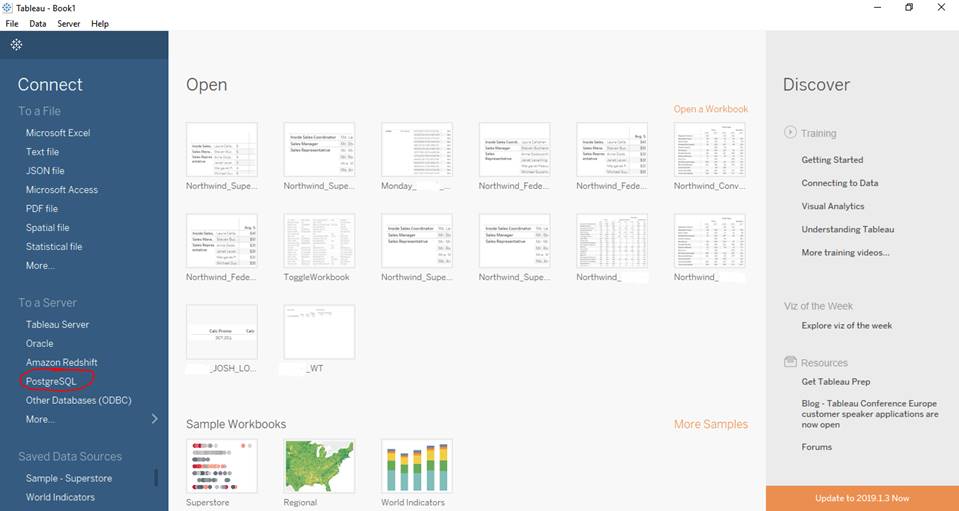
From Tableau Desktop, create a database connection
using the PostgresSQL Driver o
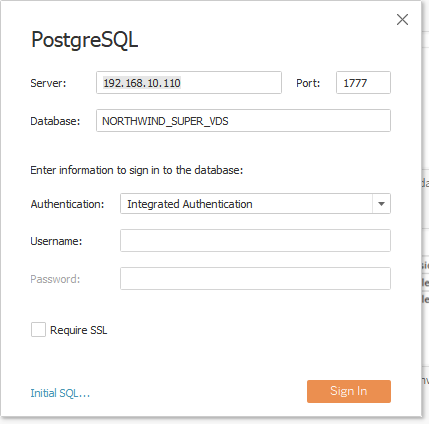
Provide the server name, port (1777) and
database name. o
Select “Integrated Authentication” as the
authentication type. o
Click “Sign In”. ·
Model your data as desired. After deploying to the Tableau Server, change the
authentication to Viewer Credentials. SmartData Fabric® Integration with Tableau
Preparing EIQ Adapters™ and EIQ Federation Servers™
Configuring Tableau for Connections
Connecting Using an ODBC DSN
Possible Errors
Connecting Using Single Sign On (Postgres Enumerated
Driver)
Copyright
© 2026 , WhamTech, Inc. All rights reserved. This document is
provided for information purposes only and the contents hereof are subject to
change without notice. Names may be trademarks of their respective owners.