

WhamTech ODBC Driver
Version 8.0.0.490
Registering
WhamTech ODBC Driver Setting
up EIQ Server ODBC DSN WhamTech's ODBC driver provides
an ODBC interface for database applications. WhamTech ODBC driver related
files are found in the '<WhamTech Installation folder>\Client Application
Components\bin' folder. This document describes the steps to configure and test the
WhamTech ODBC driver: 1. Register
ODBC driver 2. Setup
EIQ Server ODBC DSN 3. Test
ODBC DSN To register the ODBC driver, make sure the WHAMODBC.DLL file
is present in the “bin” folder of the EIQ Product Suite installation on your
local machine. ·
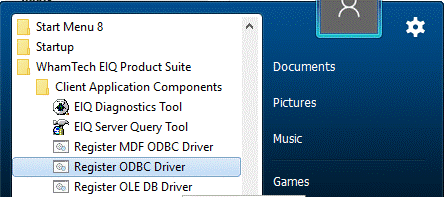
Open the
"Client Application Components" folder from the EIQ Product Suite
installation in the Start Menu. ·
Select
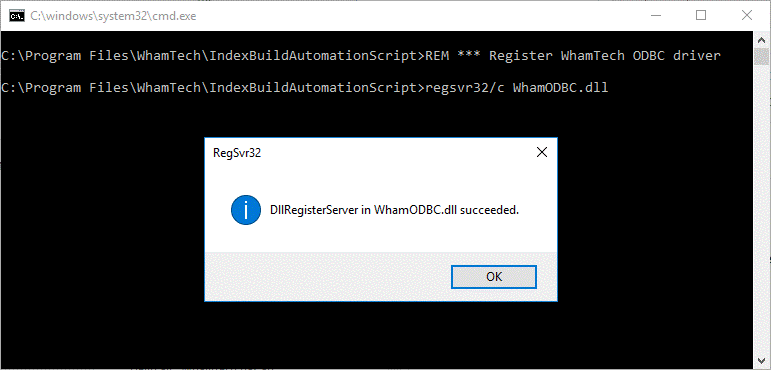
‘Register ODBC Driver’. A console window opens to execute the script file (.bat)
that registers the driver. When the registration completes, it displays a
confirmation box. ·
Click ‘OK’. WhamTech's ODBC driver is now
registered. Alternately, you can register the ODBC driver by executing ‘registerodbcdriver.bat’
from the command line. You can find this batch file in the
"<Installpath>ClientApplicationComponents\bin\" folder on your
local machine. Next, create an EIQ Server ODBC DSN. Follow the steps
provided below to create a DSN for the FBI data source. ·
Select ‘Administrative Tools’ from the Control Panel. ·
Select ‘ODBC Data Sources (32-bit) ·
In the System DSN tab, select ‘Add’ to create
new data source. ·
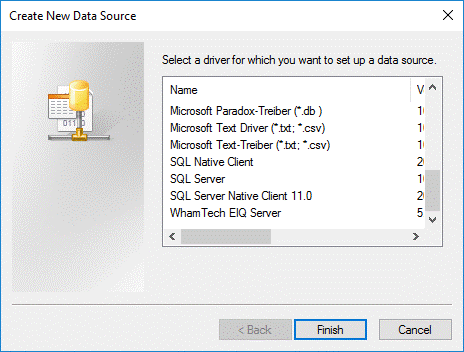
The ‘Create New Data Source’ window opens. ·
Select "WhamTech EIQ Server" from the
list of ODBC drivers and click ‘Finish’. It opens the "Configure EIQ Data Source Name"
window. Note:
The 'ODBC Data Source Name' used while creating an EIQ Server ODBC DSN should
not match any of the existing ODBC DSNs referenced by any EIQ Server data
source on that system. For example, if there is an existing EIQ Server data
source pointing to 'ODBC_TEST',
you cannot use the same name to create an EIQ Server ODBC DSN. ·
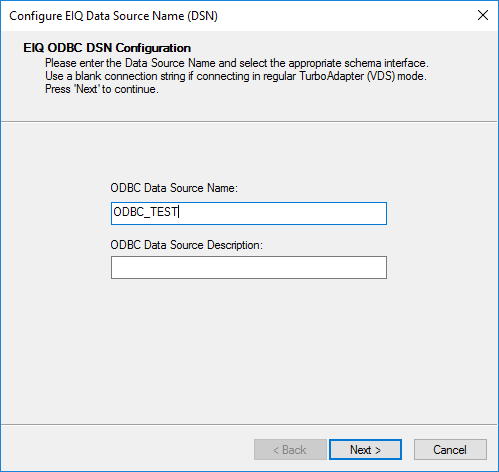
Enter an ODBC Data Source Name, for example, ODBC_TEST. ·
Click ‘Next’. ·
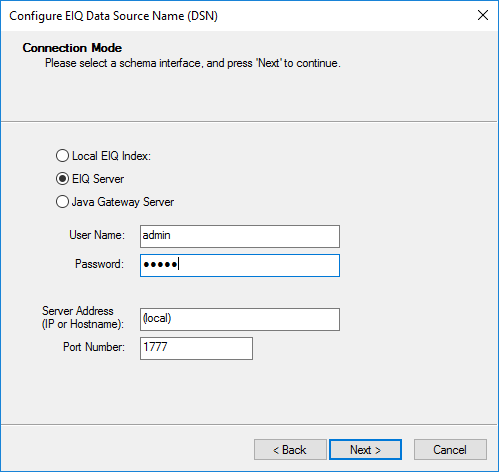
Select ‘EIQ Server’ as the connection mode. ·
Enter the EIQ Server address and the port number. If
the server is on a local machine, enter ‘(local)’. ·
Enter the Username and Password and click ‘Next’ to
connect to the EIQ Server. ·
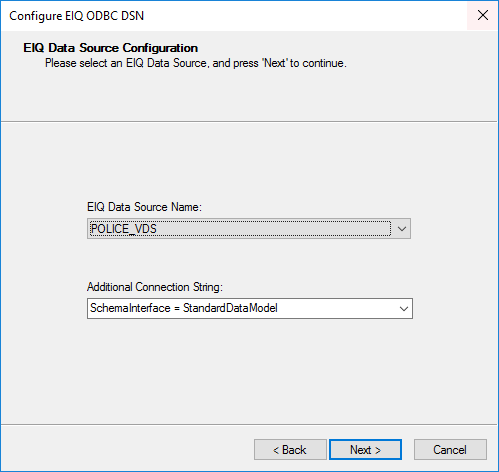
Select the virtual data source you want to connect to. ·
Specify the connection string for the data source and click
‘Next’. ·
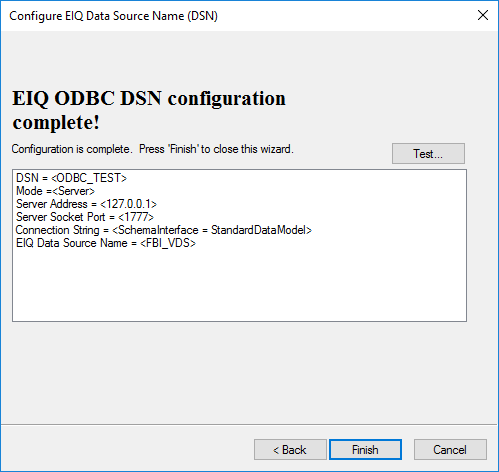
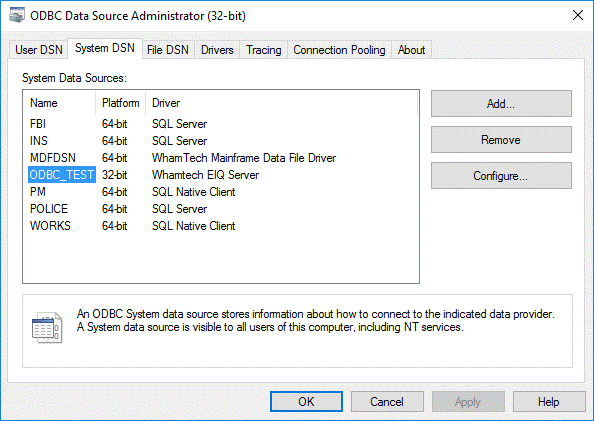
Click ‘Finish’. You can see the configured ODBC DSN in the ODBC Administrator
window. ·
Click ‘OK’. You can use tools such as Advance Query Tool (AQT), FOXY
SQL, and Microsoft Excel to test ODBC DSN. This example uses Microsoft Excel. Follow these steps to configure a Microsoft Excel Sheet to
run queries using the ODBC DSN. ·
Open Microsoft Excel. ·
For older versions of Excel: In the Data tab; go
to "Import External Data" and select "New Database Query." ·
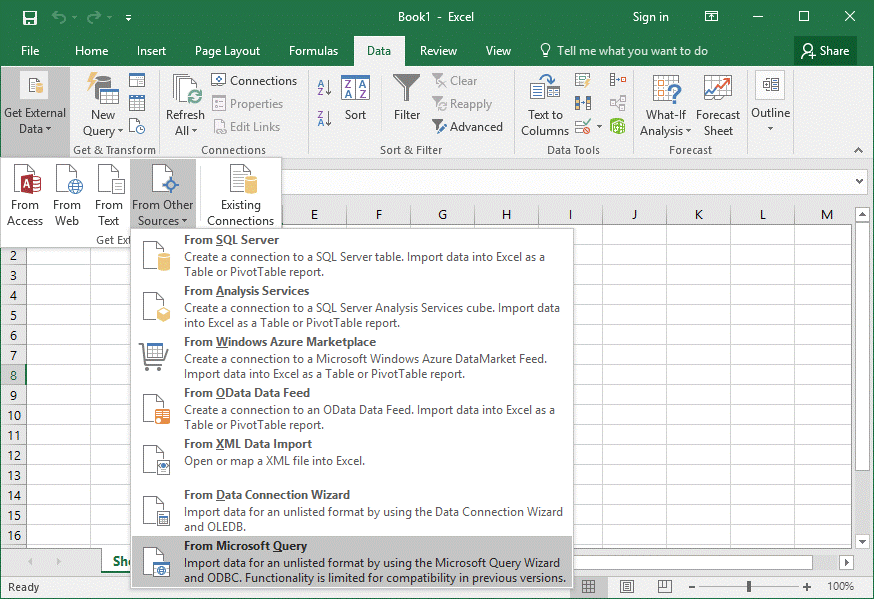
For newer versions of Excel: In the Data tab;
select “Get External Data”, hover “From Other Sources”, and select “From
Microsoft Query.” ·
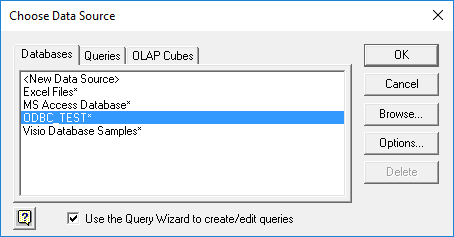
Select the configured ODBC DSN from the list of
Data sources. ·
Click 'OK'. The Microsoft Query Wizard opens. ·
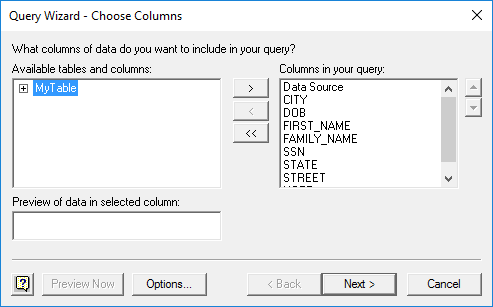
Select the tables and columns you want to use for
the query and click the arrow ‘>’ to add them. You should see the added columns in the right pane. ·
After selecting the tables and columns you want
to use, click ‘Next’. ·
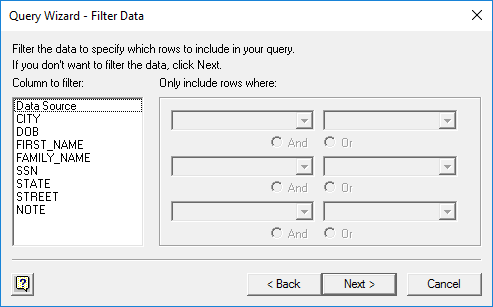
The next window asks to specify a filter. It can
be skipped. Click ‘Next’. ·
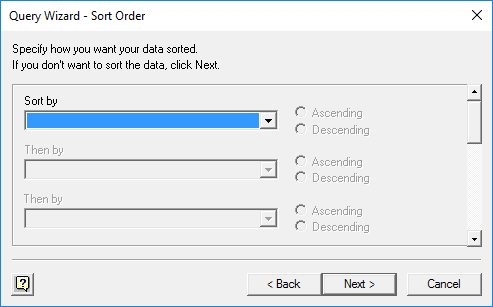
The following window asks to specify sorting. It
can also be skipped. Click ‘Next’. ·
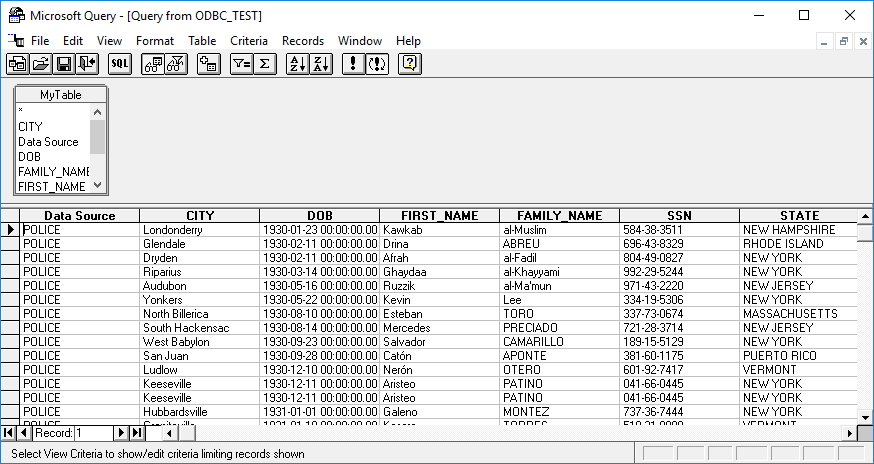
Select ‘View data or edit query in Microsoft
Query’. ·
Click ‘Finish’. This will load the data into
Microsoft Query. ·
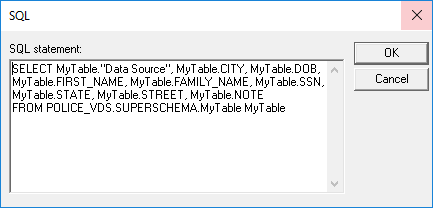
Select ‘SQL’ from the toolbar. It opens a SQL editor where you can specify the SQL query
you want to execute. The default query in the window displays the query that
fetched the data. ·
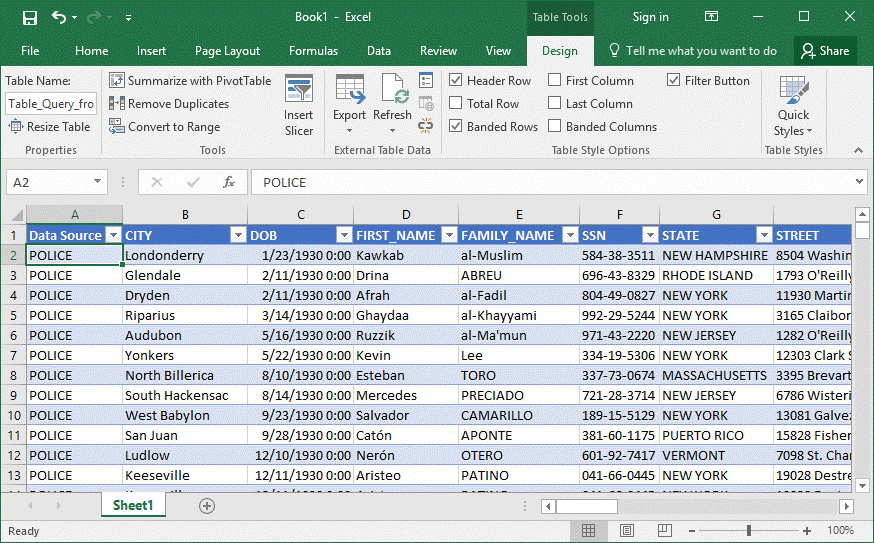
If desired, enter a new query and click ‘OK’. The result set is displayed in the Microsoft Query window.
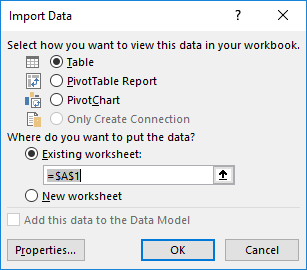
Closing the Microsoft Query window presents the option to import the data back
into Microsoft Excel. ·
Click ‘OK’ to import the data. WhamTech's
ODBC Driver Setup
Registering WhamTech ODBC
Driver
Setting up EIQ Server ODBC DSN
Testing
ODBC DSN
Copyright
© 2026 , WhamTech, Inc. All rights reserved. This document is
provided for information purposes only and the contents hereof are subject to
change without notice. Names may be trademarks of their respective owners.