

WhamJDBC Web URL Client Interface
Deploying the URL Client Application to Apache Tomcat Web Server
Calling the Client Application through a Web Browser
The WhamJDBC Web URL Client Application is a web application that provides a URL interface for querying against an EIQ Product Server. Calling programs can connect to, query against, and get results from a selected EIQ Product Server data source by giving query arguments through a URL link. When the WhamJDBC URL links are invoked from a browser, the results of the query given in the link are displayed on a web page as plain text - either in CSV, or delimited TEXT format.
Third party tools such as EMC's Greenplum can use this interface to retrieve data from EIQ Servers.
Behind the scenes, the WhamJDBC Web URL Client Application uses the WhamJDBC driver to connect to EIQ Product Servers as shown in the diagram below.
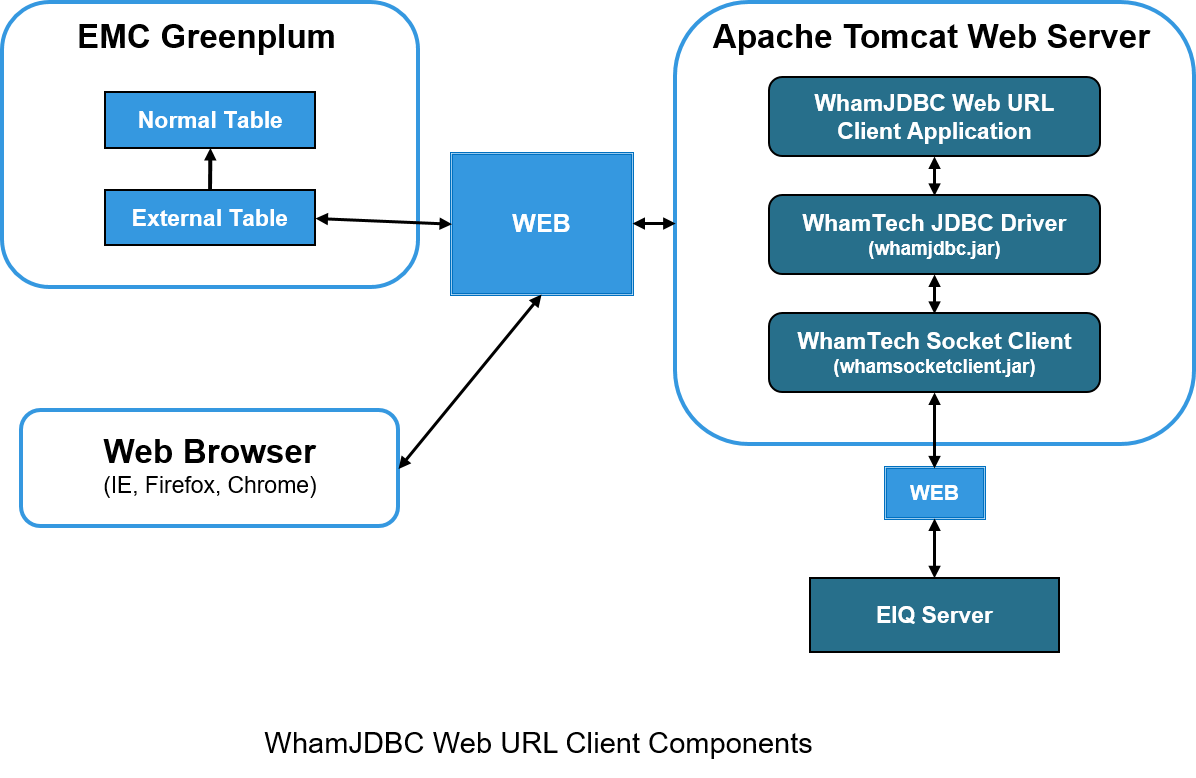
All relevant components are installed as part of EIQ Product Suite installation.
http://<WebApplicationServerAddress>/WhamJDBCWebURLClient/?serverAddr=<EIQServerAddress>&serverPort=<EIQServerPortNumber>&dsName=<EIQDataSourceName>[&connStr=<ConnectionString>]&query=<EIQQuery>&formatType=<OutputFormat>
Where:
<WebApplicationServerAddress>: The URL address where the WhamJDBC Web URL Client application is deployed. (See below for more details).
<EIQServerAddress>: The IP address or host name where the EIQ Server instance is running.
<EIQServerPortNumber>: The port where the EIQ Server instance is running. The default is 1777.
<EIQDataSourceName>: The name of the EIQ Server data source or Virtual Data Source to execute the query on.
<ConnectionString>: The Connection String (SchemaInterface=StandardDataModel, SchemaInterface=Native, etc.) (Optional)
<EIQQuery>: The SQL query to execute.
<OutputFormat>: The Output format expected. CSV for comma-separated values and TXT for text-delimited values (with TAB being the field delimiter).
Example:
http://localhost:8080/WhamJDBCWebURLClient/?serverAddr=localhost&serverPort=1777&dsName=POLICE_VDS&connStr=schemaInterface=StandardDataModel&query=SELECT CITY, STREET, STATE, ZIP, INCIDENT_ID FROM mytable WHERE incident_id between 1010 and 1020 or incident_id=21&formatType=CSV
· Install the Apache Tomcat Web Server.
· In a browser, go to 'http://localhost:8080' (if needed, change the port number to the port of the running Tomcat instance. 8080 is the default port on which Tomcat runs). You will see the Tomcat start-up page.
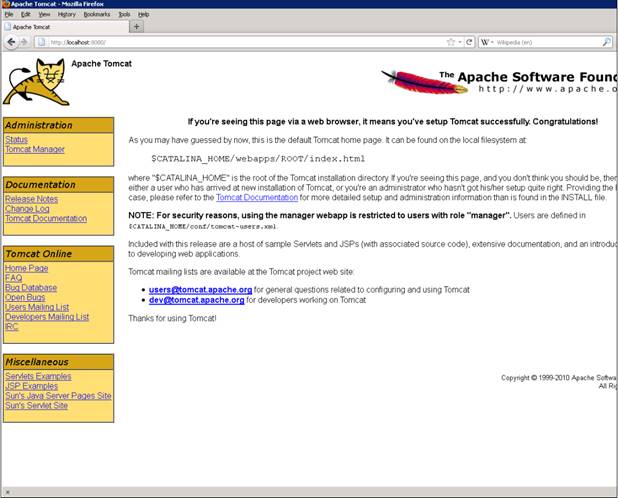
· Under the 'Administration' section, click 'Tomcat Manager'. You may be asked to enter a username & password.
Note: The username & password can be found in the '$CATALINA_HOME/conf/tomcat-users.xml'.
For security reasons, the Tomcat Manger is restricted to users with an 'admin' role.
You should see the Tomcat Web application manager page. Scroll down to the section 'War file to deploy'.
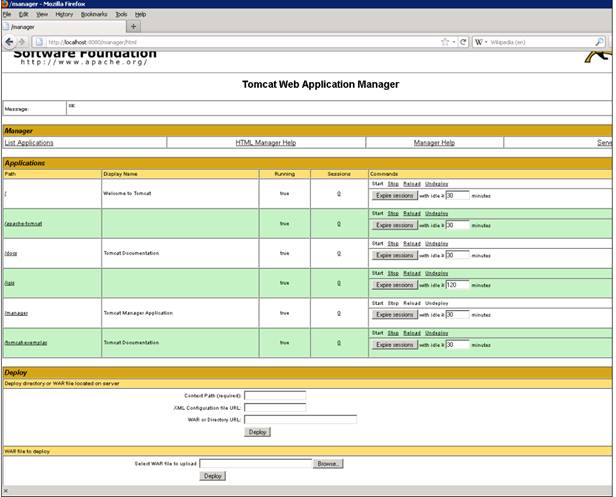
· Click ‘Browse’ and navigate to the "WhamJDBCWebURLClient.war" file. Then click 'Deploy' to deploy the web application. Assuming that the EIQ Product Suite is installed in the default location "C:\Program Files\WhamTech", you should find the .war file under “C:\Program Files\WhamTech\EIQ Product SDK\Java Client SDK\Samples\whamJDBC Web URL Client.”
Tomcat Web application manager will unpack the .war file under '$CATALINA_HOME/webapps'.
· After the web application manager deploys the WhamJDBC Web URL Client application, you should see it under the 'Applications' section. You can 'Start', 'Stop' and 'Undeploy' the web application from the web application manager page. The web application is now ready.
· Open a web browser and enter a URL that uses the WhamJDBC Web URL syntax:
For example:
http://localhost:8080/WhamJDBCWebURLClient/?serverAddr=localhost& serverPort=1777&dsName=POLICE_VDS&query=SELECT CITY, STREET, STATE, ZIP, INCIDENT_ID FROM mytable WHERE incident_id between 1010 and 1020 or incident_id=21&formatType=CSV The following screen shot shows the output: 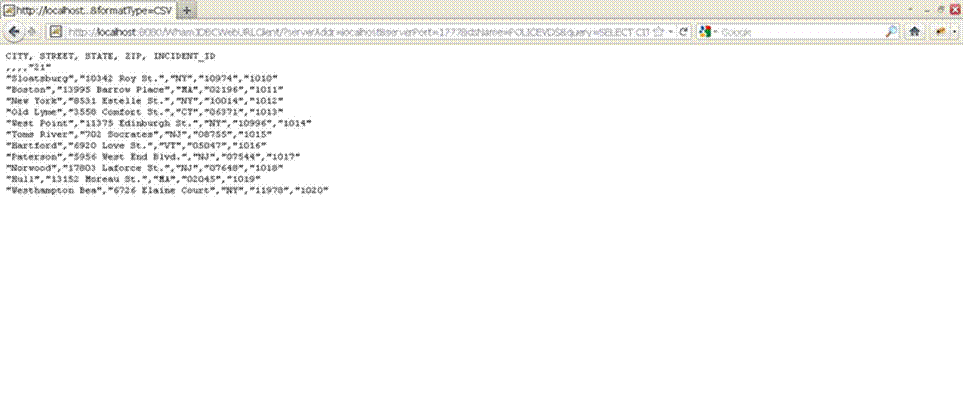
Copyright © 2019 , WhamTech, Inc. All rights reserved. This
document is provided for information purposes only and the contents hereof are
subject to change without notice. Names may be
trademarks of their respective owners.